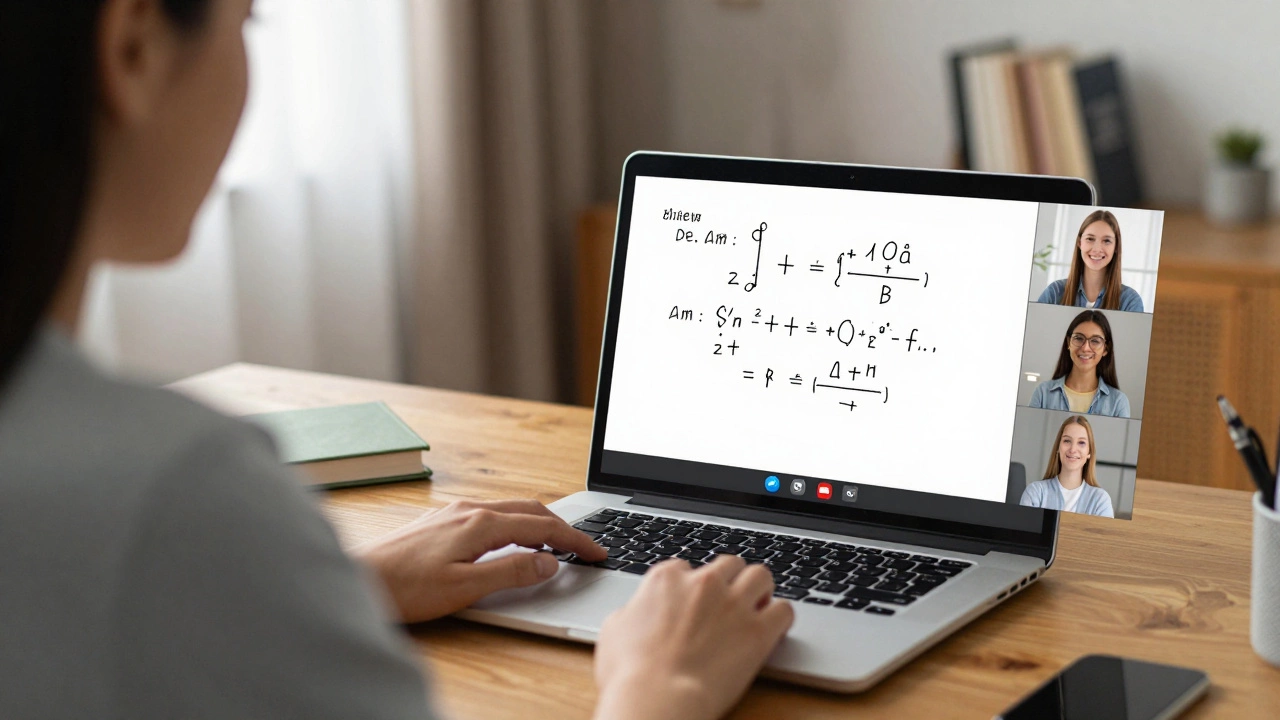
If you're trying to teach online, you're not alone. Millions of teachers, tutors, and coaches have switched to digital classrooms since 2020. But with so many apps out there, choosing the right one can feel overwhelming. You don't need the fanciest tool-you need the one that fits your teaching style, your students’ needs, and your tech comfort level.
What you really need in an online teaching app
Before jumping into apps, ask yourself: What happens during a real lesson? You explain something. Students ask questions. You show examples. Maybe you write on a board. You check if they got it. That’s it. The best apps make those five things easy-not complicated.
Look for these four essentials:
- Live video and audio-clear enough that students don’t keep saying, “Can you hear me?”
- Screen sharing-so you can show slides, websites, or your notes.
- Interactive whiteboard-for drawing, circling, or writing equations in real time.
- Recording-so students can replay lessons if they miss something.
Anything else? Nice to have. But if you’re missing these, you’re fighting the tool instead of teaching.
Zoom: The reliable default
Zoom isn’t flashy, but it’s the most trusted app for live teaching. Why? It works on almost every device-phones, tablets, old laptops, even Chromebooks. No downloads needed for students to join via browser.
Teachers use Zoom because:
- You can lock meetings to stop randoms from joining
- Breakout rooms let you split students into small groups for practice
- It records directly to your computer or cloud
- Attendance tracking is built in
Downside? No native whiteboard. You need to share your screen and use a drawing app like Microsoft Whiteboard or Jamboard. But if you’re already comfortable with screen sharing, this isn’t a dealbreaker.
Zoom’s free plan lets you teach up to 40 minutes per session. For regular teaching, the Pro plan ($14.99/month) removes time limits and adds cloud recording and custom backgrounds.
Google Meet: Simple and free for schools
If you’re teaching through a school or use Gmail, Google Meet is already in your pocket. No extra sign-up. No passwords to share. Just click a link and you’re in.
It’s not as powerful as Zoom, but it’s smoother for basic lessons:
- Real-time captions help students with hearing difficulties or non-native speakers
- Live streaming to YouTube lets you reach bigger audiences
- Integration with Google Classroom means you can assign work and track attendance in one place
Google Meet’s free version allows 60-minute sessions for up to 100 people. That’s enough for most tutors and small classes. If you’re part of a school using Google Workspace, you get unlimited meeting time and advanced controls.
Best for: Teachers who want zero setup, use Google tools already, and don’t need breakout rooms or advanced controls.
Microsoft Teams: For schools with Microsoft licenses
Teams isn’t just for business-it’s a full classroom platform. If your school uses Microsoft 365, you’re already paying for it. Why not use it?
Teams gives you:
- Integrated assignment boards and grading tools
- OneNote Class Notebook-students can write answers in real time
- Live polls and quizzes during class
- Automatic transcription of lessons
It’s heavier than Zoom or Meet. More buttons. More menus. But if you’re managing assignments, attendance, and feedback all in one place, Teams saves hours every week.
Free version works for up to 300 participants. No time limits. Perfect for public school teachers or private tutors working with institutions.
Outschool: Built for tutors, not just tech
Outschool isn’t just an app-it’s a marketplace. You sign up, create a class, and students find you. You don’t need to find your own students. That’s the big win.
It’s designed for independent tutors teaching kids and teens. Subjects? Everything from coding to creative writing to chess.
Features:
- Pre-built class scheduling and payment system
- Whiteboard and screen sharing built in
- Parent communication tools
- Automatic reminders and attendance tracking
Outschool takes 30% of your earnings. But if you’re just starting out and don’t have a website or email list, it’s a huge shortcut. You get access to 1.5 million families actively looking for online classes.
Best for: Private tutors who want to focus on teaching, not marketing.
Demio: For live classes with more control
If you’re teaching weekly courses, webinars, or workshops, Demio gives you professional tools without needing a tech team.
It’s not for one-off lessons. It’s for structured programs.
Why it stands out:
- Automated reminders via email and SMS
- Live polls, Q&A, and chat moderation
- Branded landing pages for your class
- Analytics on attendance, engagement, and drop-off points
Demio costs $49/month. That’s more than Zoom or Meet. But if you’re running paid courses, the analytics alone pay for it. You’ll see which parts of your lesson students tune out-and fix them.
Best for: Coaches, course creators, and tutors running recurring paid classes.
What most people get wrong
Many teachers pick apps based on features they don’t need. Like:
- Virtual backgrounds (you’re not on a TikTok stream)
- AI-generated summaries (students need your voice, not a robot)
- Integration with 10 other apps (you just want to teach)
The real problem? Overcomplicating the experience. If your students have to download three apps, reset passwords, or wait 5 minutes for the screen to load, they’ll quit. Fast.
Test this: Ask a student to join your next class. If they say, “How do I get in?”-you’ve got a problem. The best app is the one your students can join without help.
Quick decision guide
Still stuck? Use this flow:
- Are you teaching kids through a school? → Google Meet or Microsoft Teams
- Are you a freelance tutor with your own students? → Zoom (Pro plan)
- Do you want students to find you, not the other way around? → Outschool
- Are you running paid weekly courses with dozens of students? → Demio
Don’t overthink it. Start with one. Master it. Then add tools later if you need them.
What to avoid
Some apps look cool but fail in real classrooms:
- Discord-great for chat, terrible for structured lessons. No recording, no attendance, no whiteboard.
- Skype-outdated interface. Free version doesn’t support group calls well.
- Facebook Live-no control over who joins, no recording options for teachers, no privacy.
These tools are for socializing, not teaching. Save them for after-class chats.
One setup that works for 90% of teachers
Here’s the simplest system:
- Use Zoom Pro for live classes
- Record every session and upload to Google Drive
- Share the link via Google Classroom or email
- Use Google Docs for notes and assignments
No extra logins. No app hopping. Students know exactly where to go. You can teach for years with this setup.
Final tip: Test before you commit
Try each app with a friend. Pretend you’re a student. Can you join in under 30 seconds? Can you see the whiteboard? Can you ask a question without shouting? If not, ditch it.
Teaching online isn’t about the app. It’s about connection. The right tool disappears-so you can focus on your students.
Can I teach online for free?
Yes, but with limits. Zoom’s free plan caps sessions at 40 minutes. Google Meet lets you teach up to 60 minutes with up to 100 people. Microsoft Teams has no time limit on free accounts for schools. If you’re teaching once a week to a small group, free tools work fine. For daily or long classes, upgrade to a paid plan to avoid interruptions.
Which app is best for teaching math online?
Zoom or Microsoft Teams are best for math. Both support screen sharing so you can show equations or use a digital whiteboard. Teams has the edge because of OneNote Class Notebook-you can write problems live, and students can solve them in their own space. Zoom works too, but you’ll need to pair it with a separate whiteboard app like Jamboard or Explain Everything.
Do I need a camera to teach online?
Not always, but it helps. Students connect better when they see your face. It builds trust and lets them read your expressions. If you’re teaching a large group or just doing audio-based instruction (like language drills), you can skip it. But for one-on-one or small-group teaching, keep your camera on.
Can students join without an account?
Yes, on Zoom, Google Meet, and Microsoft Teams. Students can join via browser without logging in. Just send them a link. That’s why these apps are so popular with teachers-you don’t need to manage student logins. Avoid apps that require downloads or sign-ups for participants.
How do I record my lessons?
Zoom and Teams let you record directly to your computer or cloud. Google Meet saves recordings to your Google Drive if you’re using a Workspace account. Outschool and Demio auto-record and store lessons for you. Always ask students for permission before recording. Store recordings securely and delete them after a few weeks unless students need them for review.






0 Comments